Central-360 On the Web: Information Management for Nonprofits and Schools
Central-360: Context and Collaboration A System With A Mission
Nonprofits and schools have a tremendous need for professional information management.
Complete, accurate, timely data are at the core of an organization's successful operation.
Unfortunately, until now, there were only 3 options:
buy a system that was too simplistic and limited
buy a system that was too complicated and expensive to maintain
do the best you can without
Finally, there's a solution.
Central-360 has created an information management system designed for the needs of nonprofits and schools.
The system is a hosted, web-based application, so you don't need expensive servers and technicians for installation and maintenance.
The system includes password-protection so you can decide who sees what.
With a computer and an internet connection, you can work from office or home.
And, it includes office automation features, so that making labels, printing contact lists, and sending group emails is a snap.
Central-360 reduces your administrative workload by 30-40%. It moves your information from scores of
spreadsheets, paper files, and peoples' heads into one secure, shared database.
It creates a collaborative environment that allows you to easily share timely, accurate information with
staff, board members, volunteers, participants, and funders.
And, more than just a collection of facts and figures,
Central-360 applications provide context and meaning for your data,
helping you and your staff manage both the big-picture mission as well as day-to-day operations.
This combination is a key success
factor for nonprofits and schools interested in reducing costs and
increasing community participation and donations in these difficult times.
Finally, your organizational memory has a home.
The documentation below shows how to use Central-360 to enter and maintain your data on the web.
In addition, this information is also available in a read-only format and can be used in the public section of your web site.
For example, once you have entered your event and committee schedules, you can create a dynamic, read-only
web page that automatically provides users with up-to-the-minute information. When you change the schedule in Central-360,
the information on your web site is automatically updated, making web maintenance a breeze.
[View screenshot]
What's In Central-360?
Central-360 provides a collection of inter-related applications designed to help you in every area of your operations.
The starting set of applications include People, List Management, Labels, Reports, and Extracts.
All other modules are optional and can be added when you and your staff are ready.
So, let's take a tour of the system.
Imagine you are the development director for Central City School of the Arts (CCSota).
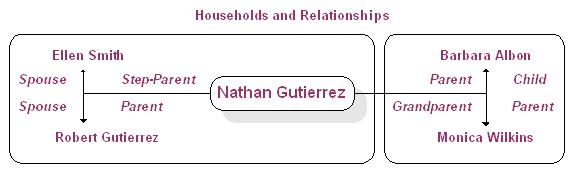
We'll use "Ellen Smith" as our guide. Ellen is married to Robert Gutierrez and has
a step-son named Nathan Gutierrez who attends your high school, CCSota.
Nathan's mother's name is Barbara Albon, and she lives with her mother, Nathan's grandmother.
Ellen is a very active parent: volunteering, donating, and generally helping out.
Our goal as development director is to get to know Ellen and her family
and to be able to collaborate with the staff and Parent/Teacher/Student Association (PTSA) volunteers
to encourage Ellen to be an active member of our community.
People
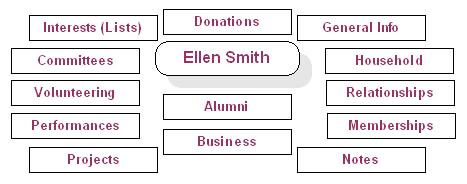
Central-360 starts with People. Each person has a unique record in the system, whether they are staff, donors, students, clients,
volunteers, professional colleagues, or any combination.
"One-record-per-person" eliminates the problems and costs associated with maintaining
a person's current information across many spreadsheets, documents, and databases.
As you gather more information about a person, such as
their interests and volunteer activities, the new information is linked to their existing People record.
General Information
This section includes all the basic information you need to contact a person: cell phone, business name and phone,
email, prefix, credentials, fax, and salutation.
[View Screenshot]
Household Members
The Household view provides context for a person beyond their home address.
This view allows you to easily link together everyone living at the same address.
Then, anyone who views Ellen's record is also aware of the other members in her household.
If the family moves, changing the household address updates all of the people living there.
There are also fields for Household Name and Household Salutation.
These fields are selected when you want to create one label or merge letter for each household rather than each individual.
[View Screenshot]
Relationships
In addition to grouping people by household, you can group them by Relationships.
With the current variety of family configurations, this provides more valuable context. Relationships are listed at the bottom
of the Household view. You can see that Ellen is the parent of Nathan and the spouse of Robert
[View Screenshot].
If you Nathan's record, you will see that his relationships include
his mother, step-mother, father, and grandmother [View Screenshot].
This view is particularly helpful when parents are living in different households. You can also identify
step parents, guardians, grandparents, and even friends.
Lists and Participation
The List view allows you create and assign a person to an unlimited number of lists. A list is another way to group people
based upon what you know their interests.
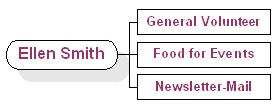
At the beginning of the school year, Ellen filled out a volunteer form and said she was interested in providing food for events
and general volunteering (a very popular combination). She would also like the monthly newsletter mailed to her.
As you learn more about Ellen and her family, you can add her to additional lists
(maybe she'd like to help paint classrooms or can pick up supplies in her van)
[View Screenshot].
Without Central-360, an organization will often have a separate spreadsheet or Word document for each list,
and the names and addresses of the people are entered over-and-over again.
If a person's address changes, it's a major task to update that address across all of the documents.
Since Central-360 has just one record per person that links to the various lists,
you just update the name once and all of the lists are automatically correct.
It's easy for you to create a new list. Click and add a new unique list code and
title [View Screenshot].
To see a list of everyone on the selected list, click
[View Screenshot].
The Participation view under Lists shows you everything Ellen has done for the school.
This view shows data collected from all of the optional Activity modules: Fundraising, Committees, Events, Performances, Projects, and
Associations. Between Lists and Views, you have a good idea of her interests and level of participation.
Activities and Schedules
The Activities and Schedules applications include a set of optional modules to help you track
your events, committees, and fundraising campaigns as well as every interaction between a person and your organization.
Each of these modules are explained in detail below.
Activities
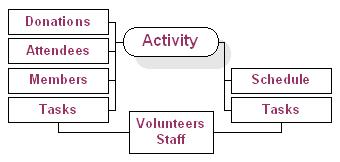
In Central-360, "Activities" refer to all organized events and opportunities for participation in the organization.
[View Screenshot].
Activities include:
Events
Performances
Projects
Committees
Associations
Fundraising
Information related to each module includes the formal name of the activity,
start and end dates, a long and short description, ticket/pricing information, etc.
[View Screenshot]
The view shows the data entry form. However, once the information is entered in the system, it
can be reformatted and incorporated in the public section of your web site.
Schedules
Optionally, activities can have Schedules.
A schedule is defined as "something happening at a specific
date and time", such as the start of a performance or the start of a volunteer project. Some activities have
many schedule entries. A performance could happen over several nights, and an event might have a morning and afternoon session.
You can enter all of the scheduled items you need to track. Once entered, these the schedules are available
both on your interal web site, and, selectively, on your public site. For instance, you might want to include
all public performances on the web, but the rehearsal and tech schedules would only be available to parents and students.
[View Screenshot]
Tasks and Volunteer Management
Most activities include a number of tasks that must be created, scheduled, and managed.
The optional Task Management module includes everything you need for this process.
[View Screenshot]
Often you need more than one person to handle a task, such as the ever-popular "Cleanup". In Central-360,
you enter the codes to define the task, the date, start and end times, and how many people you will need.
When you click on , all of the requested records are created at once. This allows you
to rough out your schedule before you have the staff or volunteers. As you identify the people, just select the task and
enter their name. The task is filled and the information is linked to the person's name and will now show in the
Participation view. And, if you enter the number of hours per person, the system will automatically track all of the staff
and volunteer time related to the activity.
Fundraising
Entering donations is easy in Central-360. First, create a campaign record in the Activity module, including
title, description, goals, significant dates, and solicitors.
As donations or pledges are received, in the donation module enter all of part of the donor's name,
and you will see a list of all matches
[View Screenshot].
Select next to the name and enter the amount.
[View Screenshot]
The running total appears automatically on the main activity screen, keeping you up-to-date with the
progress of the fundraising
[View Screenshot]
.
Since the person is now linked to this fundraising activity, you can use the Office Automation features (described below)
to send thank-yous and print labels and phone lists, simiplifying the administrative tasks.
Office Automation: Making Life Easier with Labels, Group Emails and Reports
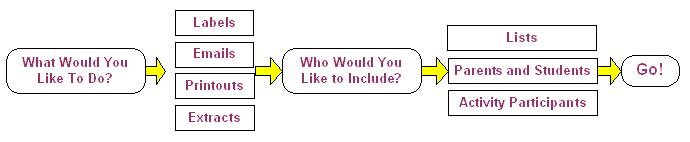
Central-360 provides automated tools for many of your administrative tasks, including generating labels, sending emails to groups, and printing
contact lists and reports [View Screenshot]. Start by clicking on a task from the
"What Would You Like To Do" menu.
Next, depending upon your choice, you will select the label size, the report format, or create an email to send
(see [View Screenshot]).
Note: The Email system sends one email per person, not a single group email with all of the addresses in the CC or BCC field.
This minimizes the chance that your email will be treated like spam.
Emails can be customized to include personalized data and you can select either Plain Text or HTML formats.
Then, choose the groups to be included. You can select Lists, Parents and Students, or Active Participants.
[View Screenshot].
Each selection is explained below.
Lists
You select one or many lists to include. If you choose multiple lists and one person is on more than one list, the
duplicates will be automatically eliminated. For schools, you can refine the selection by choosing one or more classes and
one or more disciplines [View Screenshot].
Parents and Students
This selection choice is based upon the school rosters. You select any combination of classes and disciplines. You can also choose
from three type of formats [View Screenshot]:
Parents: Every parent record linked to a student
Households: One record per household, using the Household Name
Students: One record per student including the primary address
Active Participants
With this option, you select one or more activities, including events, projects, committees, and fundraising campaigns.
You can either include everyone associated with the activity, or only selected roles, classes, or disciplines.
[View Screenshot]
View the Selected Names
Once you select your criteria, you will see a list of all names, including phones, email, and, if applicable, student info.
[View Screenshot]
Depending on your choice, you then click to generate the labels, send the emails, or print the list
[View Screenshot].
Central-360 also includes additional convenient functions available when you are viewing a list of name on the screen.
You can click a person's email field, and your local email program will load and enter the email address for the person
in the TO: field of your email. If you click [Update],
you will be able to view and update (if you have those security rights) the complete record for the selected person.
This makes it quick and easy to update a person's record at any time.
In the News
In this module you are able to catalog documents and articles located on your web site or anywhere else on the web, including
media sites [View Screenshot].
You can copy-and-paste the content of articles directly into Central-360, and you can provide a link
to the original document. Items can be catalogued and dated, and you can include the name and email both for the
author and a contact in your organization
[View Screenshot].
 "One-record-per-person" eliminates the problems and costs associated with maintaining
a person's current information across many spreadsheets, documents, and databases.
As you gather more information about a person, such as
their interests and volunteer activities, the new information is linked to their existing People record.
"One-record-per-person" eliminates the problems and costs associated with maintaining
a person's current information across many spreadsheets, documents, and databases.
As you gather more information about a person, such as
their interests and volunteer activities, the new information is linked to their existing People record.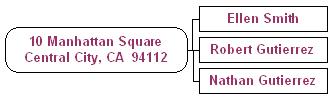 Then, anyone who views Ellen's record is also aware of the other members in her household.
If the family moves, changing the household address updates all of the people living there.
Then, anyone who views Ellen's record is also aware of the other members in her household.
If the family moves, changing the household address updates all of the people living there.
 At the beginning of the school year, Ellen filled out a volunteer form and said she was interested in providing food for events
and general volunteering (a very popular combination). She would also like the monthly newsletter mailed to her.
As you learn more about Ellen and her family, you can add her to additional lists
(maybe she'd like to help paint classrooms or can pick up supplies in her van)
At the beginning of the school year, Ellen filled out a volunteer form and said she was interested in providing food for events
and general volunteering (a very popular combination). She would also like the monthly newsletter mailed to her.
As you learn more about Ellen and her family, you can add her to additional lists
(maybe she'd like to help paint classrooms or can pick up supplies in her van)
 .
Activities include:
.
Activities include: 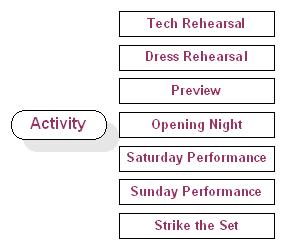 A schedule is defined as "something happening at a specific
date and time", such as the start of a performance or the start of a volunteer project. Some activities have
many schedule entries. A performance could happen over several nights, and an event might have a morning and afternoon session.
You can enter all of the scheduled items you need to track. Once entered, these the schedules are available
both on your interal web site, and, selectively, on your public site. For instance, you might want to include
all public performances on the web, but the rehearsal and tech schedules would only be available to parents and students.
A schedule is defined as "something happening at a specific
date and time", such as the start of a performance or the start of a volunteer project. Some activities have
many schedule entries. A performance could happen over several nights, and an event might have a morning and afternoon session.
You can enter all of the scheduled items you need to track. Once entered, these the schedules are available
both on your interal web site, and, selectively, on your public site. For instance, you might want to include
all public performances on the web, but the rehearsal and tech schedules would only be available to parents and students.